Enhanced Speaker Diarization: Visual Timeline & Speaker Identification Now Available for YouTube AI Transcripts
 Transcriptly Team
We're excited to announce a significant UI enhancement that makes speaker diarization more visible and useful than ever! While Transcriptly has supported speaker diarization technology for some time, we've now made it much more accessible and visually clear in the user interface. 🎯
Check out our previous updates: AI-Powered YouTube Transcription
What is Speaker Diarization? 🎤
Speaker diarization is the process of identifying "who spoke when" in an audio or video recording. It automatically separates different speakers and labels their speech segments, making it easier to understand conversations, interviews, meetings, and multi-speaker content.
Why It Matters:
- Better Understanding: Quickly identify who said what in multi-speaker content
- Improved Navigation: Jump to specific speaker segments easily
- Enhanced Analysis: Better insights into conversation dynamics
- Professional Use Cases: Perfect for interviews, podcasts, meetings, and panel discussions
New Speaker Diarization UI Features: Visual Timeline & Speaker Identification 📊
Before: Hidden Speaker Diarization Technology
While our backend technology supported speaker diarization, the UI didn't clearly showcase this powerful feature. Users couldn't easily see or interact with speaker information, making it less useful than it could be.
Enhanced YouTube AI Speaker Diarization UI Features
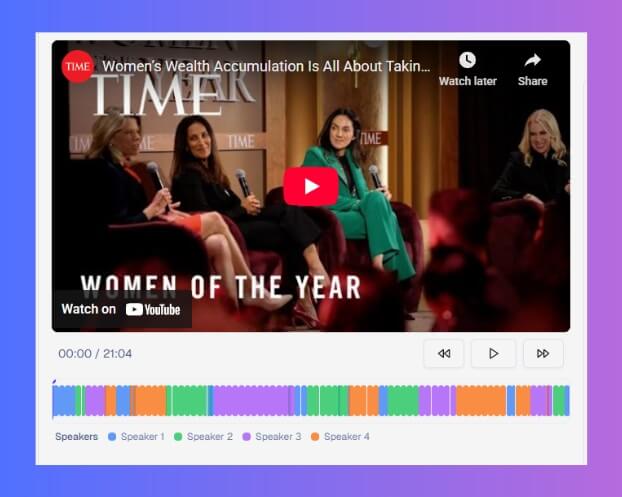
YouTube AI Speaker Timeline Visualization 🎨
For YouTube AI-generated transcripts, you'll now see a visual timeline below the video player that shows:
- Color-coded segments for each speaker
- Interactive timeline - click to jump to specific speaker segments
- Clear visual separation between different speakers
- Current playback position indicator
This makes it incredibly easy to see who's speaking at any moment and navigate between different speakers' segments.
Speaker Identification in YouTube AI Transcripts 📝
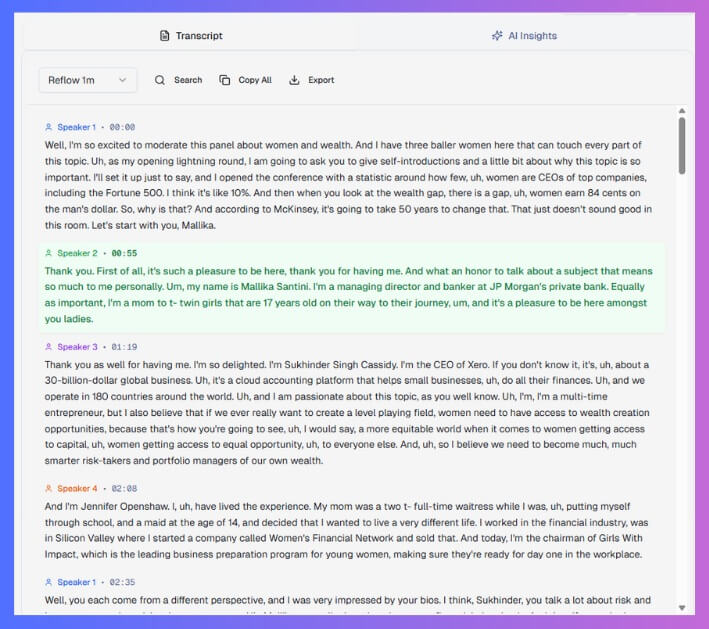
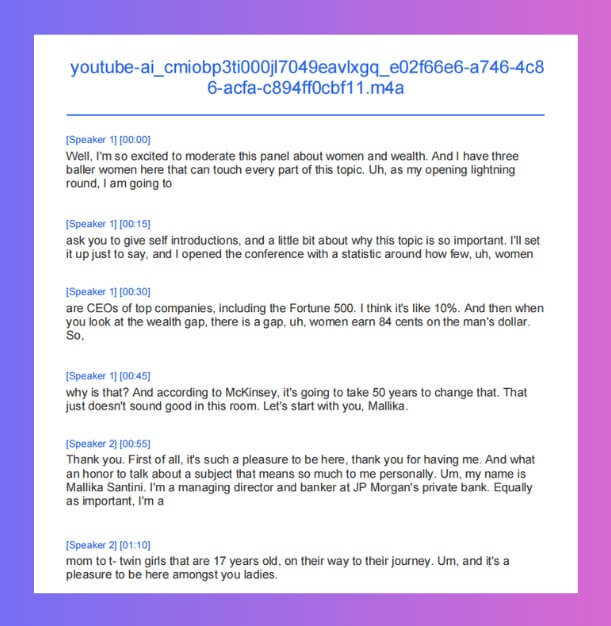
Within the transcript viewer, each segment now clearly shows:
- Speaker labels (e.g., "Speaker 1", "Speaker 2")
- Color-coded indicators matching the timeline
- Easy identification of who said what
This makes reading and analyzing multi-speaker transcripts much more intuitive and efficient.
How to Use Speaker Diarization in YouTube AI Transcripts 🚀
Step-by-Step Guide for YouTube AI Transcripts
- Generate a transcript using our YouTube AI Transcript Generator
- View the transcript - you'll automatically see the speaker timeline and speaker labels
- Interact with the timeline - click on any segment to jump to that moment
- Read with context - see clearly who said what in the transcript
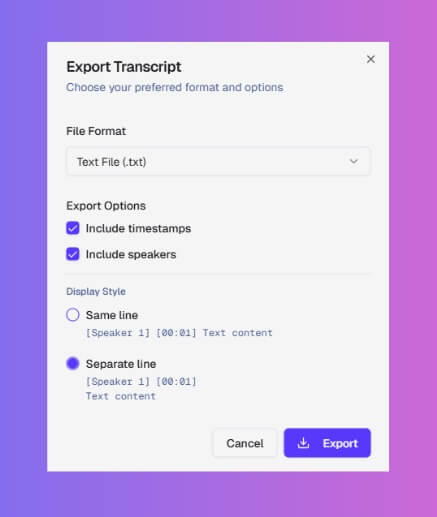
- Export with speaker information - download transcripts in TXT, Word, PDF, or CSV formats with speaker labels included
Export Formats with Speaker Support 📥
All exported transcript formats now include speaker identification:
- TXT: Plain text with speaker labels
- Word (.docx): Formatted document with speaker information
- PDF: Professional document with speaker attribution
- CSV: Spreadsheet format with speaker columns
This means you can take your transcripts with speaker information anywhere - perfect for sharing, archiving, or further analysis in other tools.
Speaker Diarization Availability: YouTube AI Transcripts Only
This enhanced UI is currently available for YouTube AI-generated transcripts. We're monitoring user feedback and usage patterns to determine if we should extend this feature to local file transcripts as well.
Why This Update Matters 💡
For Content Creators 🎥
- Better Content Analysis: Understand interview dynamics and conversation flow
- Easier Editing: Quickly identify and extract specific speaker segments
- Improved Documentation: Clear speaker attribution for professional content
- Export Ready: Download transcripts with speaker labels in multiple formats for use in other tools
For Researchers & Educators 📚
- Enhanced Analysis: Study conversation patterns and speaker interactions
- Better Note-Taking: Easily reference who said what
- Improved Accessibility: Clear speaker identification helps all users
For Business Professionals 💼
- Meeting Transcripts: Clearly identify different participants
- Interview Analysis: Track interviewer and interviewee separately
- Panel Discussions: Follow individual speakers in multi-person conversations
Technical Details 🔧
How Speaker Diarization Works
Our speaker diarization technology uses advanced AI models to:
- Detect speech segments in the audio
- Identify unique voice characteristics for each speaker
- Group similar voices together
- Label segments with speaker identifiers
- Generate visual representations for easy navigation
Accuracy & Limitations
- High accuracy for clear audio with distinct speakers
- Best results with 2-5 speakers
- Works well with natural pauses between speakers
- May require manual review for very noisy audio or overlapping speech
Future Speaker Diarization Features & Roadmap 🔮
Based on user feedback and usage patterns, we're considering:
- Extending to Local File Transcripts: If users find this feature valuable, we'll add it to file-based transcription
- Custom Speaker Names: Allow users to rename "Speaker 1", "Speaker 2" to actual names
- Speaker Statistics: Show speaking time and frequency for each speaker
Your feedback matters! If you find this feature useful, let us know and we'll prioritize extending it to more transcript types.
Getting Started 🎊
Ready to experience enhanced speaker diarization?
- Sign in to Transcriptly - Get started with free credits
- Try YouTube AI Transcription - Generate a transcript with speaker diarization
- Explore the Timeline - Click on speaker segments to navigate
- Share Your Feedback - Join our Discord to tell us what you think
Community Feedback 💬
We want to hear from you! Your feedback helps us prioritize features:
- Is the speaker timeline useful? Let us know your experience
- Should we extend this to file transcripts? Share your thoughts
- What improvements would you like? We're all ears!
Join the conversation:
- Discord Community: Join our Discord for real-time discussions
- Feature Requests: Tell us what features you'd like to see
- Success Stories: Share how speaker diarization helps your work
Conclusion 🌟
This update brings speaker diarization to the forefront, making it a visible and useful feature rather than hidden technology. The visual timeline and clear speaker identification make multi-speaker content much easier to understand and navigate.
Whether you're analyzing interviews, documenting meetings, or studying conversations, the enhanced speaker diarization UI provides the clarity and insights you need. We're excited to see how you'll use these new features to enhance your workflow!
Have questions or feedback? Contact us at support@transcriptly.org or join our Discord community.
Thank you for being part of the Transcriptly community. We're committed to continuously improving and delivering the best transcription experience possible.